


Tuya: Smart Life, Smart Living
4.57.54K Reviews
App Specs
- Version
- 7.11.4
- Updated On
- License
- Free
- Downloads
- 10,000,000+
- Developer
- Tuya Smart Inc.
- Categories
- Lifestyle
- Platform
- Android, iOS
Screenshots

 Analysis by AppCompare
I find a smart-home app most useful when it solves a small, recurring annoyance rather than asking me to rebuild my whole routine around technology. That is the lens I use for Tuya - Smart Life, Smart Living: can I get from a device I already own to a reliable, useful result without making every light switch and daily habit more complicated? It is a lifestyle app from Tuya Smart Inc., and its broad appeal is clear: it has a 4.5 average from around 476,000 ratings and over 10 million installs. Those figures suggest a lot of people use it, but my main question is whether its all-in-one approach suits your particular devices and home.
Your Home, Smarter
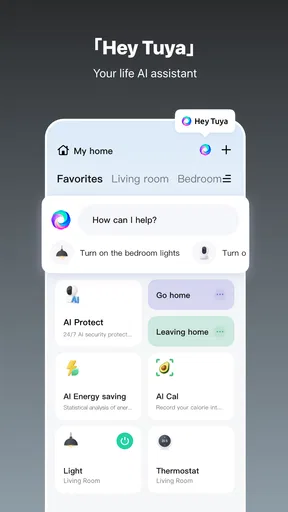
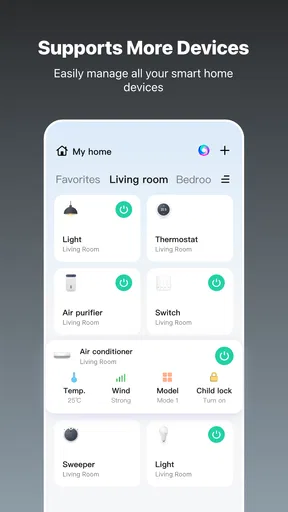
First things first, setting up Tuya - Smart Life is as easy as pie. The app walks you through connecting your smart devices with zero fuss. Got a smart bulb, thermostat, or even a camera? It’s all manageable from one place. The app supports a plethora of devices, so you’re likely covered.
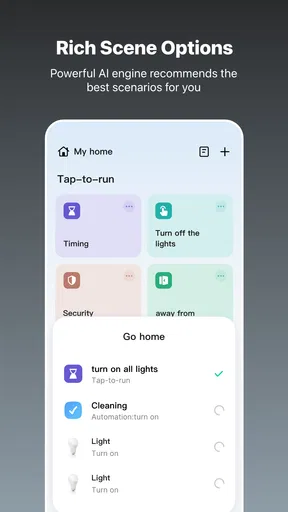
The user interface is clean and intuitive. I found everything exactly where I expected it to be. You can group devices, create scenes, or even schedule when gadgets turn on or off. Imagine coming home to a perfectly lit house with your favorite tunes already playing. It’s like living in the future!
Getting from a Device to a Routine
The app is free to install and rated for Everyone, which makes it approachable for a household where one person is comfortable with connected devices and another just wants the lights to work. It is currently at version 7.1.5, with Android support starting at version 6.0. In-app purchases are available, ranging from around $0.49 to $259.99 per item, so I would check the purchase details before paying for anything rather than assuming every part of the experience is included at no cost.
My practical advice is to start with one device and one clear task. Add a bulb, confirm that you can switch it on and off from the app, and only then build a group or schedule around it. This makes troubleshooting much easier: if a later routine behaves oddly, you know whether the issue is the device connection or the extra automation you added. It also keeps a first setup from turning into a long evening of pairing several gadgets at once.
For a simple morning routine, for example, I’d group the lights I want together, choose a schedule that matches the household’s actual waking pattern, and test it on a day when I’m home. A schedule is only helpful if it fits real life; a fixed time may be inconvenient when plans change. In that case, a manual scene can be the better choice because it gives you a quick, deliberate action without asking you to maintain a complicated timetable.
Automation Galore
One of the standout features is the automation capabilities. You can set conditions based on time, weather, or device status. For instance, I set my lights to dim if it gets cloudy outside. It’s those little things that make a big difference in comfort and efficiency.
Worth Reading Before You Choose

Flipboard Shows What News Apps Must Do Beyond the Feed

Switching to Android Auto Means Rethinking Your Driving Routine

Google Calendar Makes a Crowded Week Easier to Manage

Ludo King Makes the Most of the Minutes Between Plans

Baby Panda World Brings Quick Play to Modern Phones, but Its Game Library Feels Busy

ESPN’s Live Game View Makes Following Close Games Easier
There is a useful distinction between a scene and an automation. I think of a scene as a command I choose to run—such as setting several lights the way I want for an evening—while an automation is a rule intended to run when its condition is met. That difference matters when you are deciding how much independence to give a setup. Start with a scene for anything you want to trigger only when you mean to, then automate it after you have seen how the routine fits your day.
Conditions can make a routine more relevant than a plain timer, but they also create more opportunities for an unexpected result. A weather-based rule may not match the light in a particular room, while a device-status condition depends on the status being reported correctly. I would test a new rule while I can observe the result, and keep the first version simple. If it behaves reliably, add another condition only when that extra detail solves a real problem.
And if you’re into voice control, you’re in luck. The app integrates seamlessly with Alexa and Google Assistant. Just say the word, and your home obeys. It’s like having a personal assistant who never takes a day off.
Voice control is most useful as a convenient handoff, not a replacement for a well-organized setup. A clear device name and sensible grouping help you avoid fumbling through several similar entries or issuing a vague command. I would name devices by room and purpose, then try the voice command in the room where I expect to use it. If the spoken interaction feels less dependable than tapping the app, keep the app as your fallback instead of building your routine around voice alone.
When the App Meets the Rest of the Home
A typical evening shows where this approach can help. Imagine arriving home with groceries while it is getting dark. You can use a scene to switch on the entry and living-room lights, then rely on a separate schedule for a device you want to turn off later. The useful part is not the novelty of controlling things from a phone; it is reducing the number of small steps between walking in and settling down.
There is a trade-off in putting several brands or types of devices under one roof in the same app: it can make everyday control more convenient, but the experience depends on each device being compatible and connected properly. Before buying a new gadget, check that it works with the app and that it offers the particular control you need. A product being described as “smart” does not automatically mean it will fit the routines you have in mind.
Compared with using each manufacturer’s own app, a shared control point can reduce app-switching and make groups and routines easier to manage. The manufacturer-specific app may still be the better place to handle a device’s own settings or troubleshooting. I would not delete those apps immediately after setup; keeping them available can help identify whether a problem belongs to the device or to the shared control layer.
Security and Peace of Mind
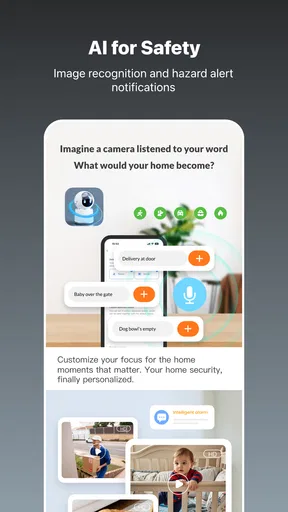
We can’t talk smart homes without mentioning security. The app offers real-time alerts and video feeds if you have compatible cameras. I love being able to check in on my home from anywhere. You can even share access with family members without losing control over your settings.
Shared access is particularly practical when someone else in the household needs to operate a device without taking over the whole setup. Before inviting another person, I would agree on what they need to control and keep the device names understandable to everyone. A home setup can become confusing when one person’s private shorthand is the only guide to what a switch or group actually does.
For a camera, the most useful workflow is to treat an alert as a prompt to check what is happening, not as proof that something is wrong. Open the feed when you have a reason to look, and make sure the camera itself is compatible before expecting it to appear in the app. If monitoring is your primary need, compare the camera maker’s own controls with the broader convenience of managing it alongside other devices; the more focused option may be preferable if you do not need an all-in-one home dashboard.
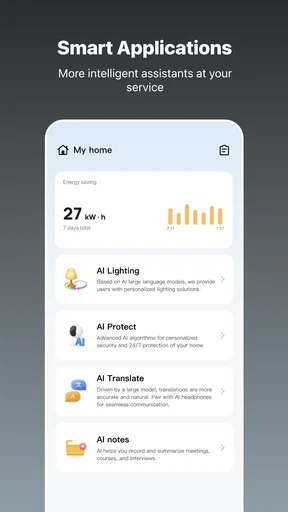
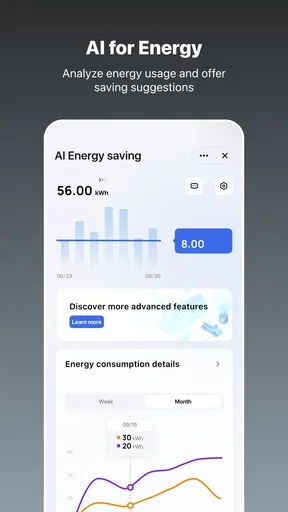
Another feather in its cap is the energy-saving insights. It keeps track of your energy consumption and offers suggestions on how to save power, which is not only good for the wallet but also for the planet.
I see energy information as a way to spot patterns, not as an instant guarantee of lower bills. It is most useful when you can connect a reading or suggestion to a device and a habit you can actually change. If you are trying to understand consumption, check the information over time and look for a repeatable pattern before changing a routine. A small adjustment that your household keeps using is more valuable than an elaborate plan that gets abandoned after a few days.
Where the Flow Can Break
Of course, no app is perfect. I did notice occasional hiccups with device connectivity, especially if your Wi-Fi isn’t the strongest. A quick reset usually does the trick, but it’s something to keep in mind.
When a device stops responding, I would troubleshoot in stages instead of rebuilding everything straight away: check whether the device still works locally, see whether the phone and device have a usable connection, then try the simplest reconnect or reset. That process helps avoid removing a device and having to recreate groups or routines unnecessarily. For anything essential to safety or day-to-day access, I would keep a physical control method available rather than relying entirely on a phone connection.
Another source of friction is that a routine can look correct in the app but still fail to match what someone in the household expects. A scheduled light may turn on at the right time but in the wrong room, or an automation can feel intrusive if its trigger is too broad. Give each routine a plain-language purpose, test it under ordinary conditions, and remove rules you no longer use. A shorter list of dependable automations is easier to live with than a crowded collection that nobody remembers.
Also, while the app supports a wide range of devices, there are some gadgets that aren’t compatible. Make sure to check the compatibility list before investing in new tech.
That compatibility check should happen before purchase, not after you have planned an entire routine around a device. I would also think about what happens if the app is unavailable or the network is unreliable: if the device has a useful physical control, keep it accessible, and do not make a nonessential automation responsible for something you need to operate immediately. This is a sensible boundary for any connected-home setup, especially when several people depend on it.
Overall, Tuya - Smart Life, Smart Living offers a robust platform for managing your smart home. It’s packed with features that genuinely enhance your daily life. Whether you’re a tech newbie or a smart home aficionado, this app is worth a shot.
I would recommend it most to someone who already has compatible devices and wants one place for everyday control, simple scenes, and schedules. It is also a reasonable starting point if you are willing to build gradually and check device support before expanding. If you only own one connected gadget and rarely adjust it, its extra controls may not justify another app. Likewise, if you need a very specialized setup or want every setting tailored to one manufacturer’s hardware, that maker’s own app may serve you better.
The app has been available since November 11, 2015, and its current version is 7.1.5. For me, the important test is still practical: does a device connect, can everyone in the home understand how to control it, and does the routine remain useful after the novelty wears off? Start small, keep manual control in reach, and add automation only when it removes a real inconvenience.
So, if you’re ready to embrace a smarter lifestyle, give the app a whirl. Your future self might just thank you!
Pros
- Easy-to-use interface for all ages.
- Wide range of compatible smart devices.
- Customizable automation routines.
- Reliable remote control features.
- Seamless voice assistant integration.
Cons
- Occasional connectivity issues.
- Limited support for non-Tuya devices.
- In-app ads can be intrusive.
- Some features require premium access.
- Initial setup can be time-consuming.
FAQs for Tuya: Smart Life, Smart Living
What is Tuya - Smart Life, Smart Living used for?
Tuya - Smart Life, Smart Living is an app designed to control and manage smart devices in your home. It allows users to integrate and automate various smart home products like lights, cameras, and thermostats from different brands, providing a seamless and unified smart home experience.
Is Tuya compatible with all smart devices?
While Tuya supports a wide range of smart devices, it's important to check compatibility before purchasing. The app works with many popular brands, but not all devices may be supported. Always verify if your specific device is listed as compatible to ensure proper functionality.
Can I control my devices remotely with Tuya?
Yes, Tuya allows you to control your smart devices remotely from anywhere using your smartphone. As long as you have an internet connection, you can manage your home appliances, set schedules, and receive alerts, giving you control even when you're not home.
Is Tuya - Smart Life secure to use?
Tuya emphasizes security and privacy, utilizing encryption protocols to safeguard your data. However, users should ensure they have strong, unique passwords and keep their app updated to the latest version to enhance security measures and protect personal information.
Does Tuya support voice control?
Yes, Tuya supports voice control through popular virtual assistants like Amazon Alexa and Google Assistant. You can issue voice commands to control your smart devices, making it easy to manage your home hands-free. Ensure your devices are linked to the respective voice assistant for seamless operation.


